Ghana Card and Selfie Check: How Pros Are Verified
What FixAm checks before a pro goes live: Ghana Card number, front and back photos and a selfie match, checked by a person. Tips for photos that pass.
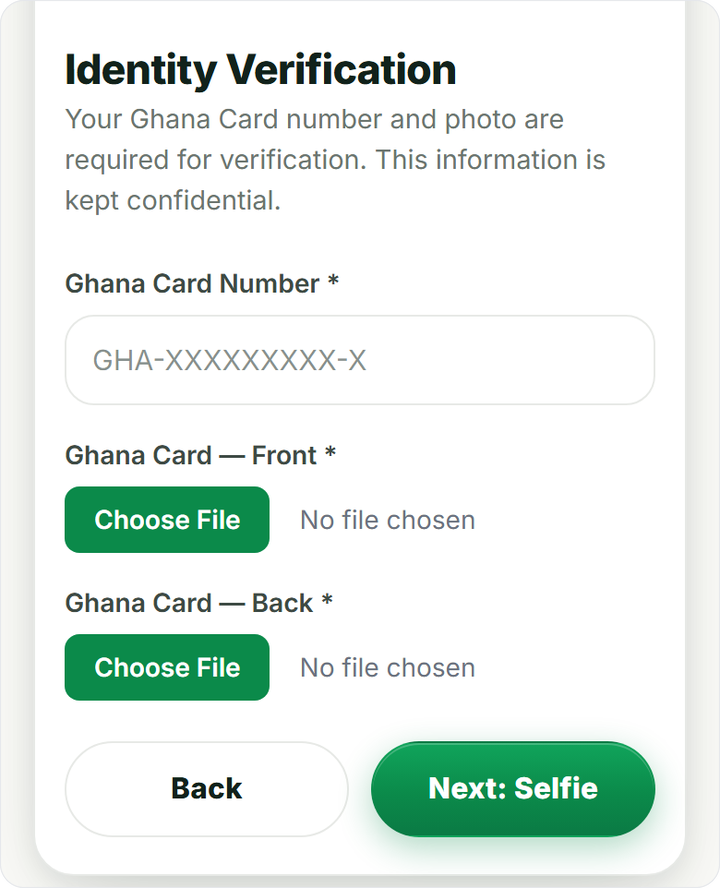
Every pro on FixAm passes a Ghana Card verification before customers can see them. You send your card number, photos of both sides of the card and a selfie. A person on the FixAm team checks them. No machine approves you, and nothing goes live until that person is satisfied.
What we check, and who sees it
When your application arrives, a member of the team:
- Reads the Ghana Card Number you typed and compares it with the number on your card photos.
- Looks at the front and back of the card to make sure they are clear and belong to one card.
- Compares your selfie with the photo on the card, to confirm the person applying is the card holder.
- Checks your references.
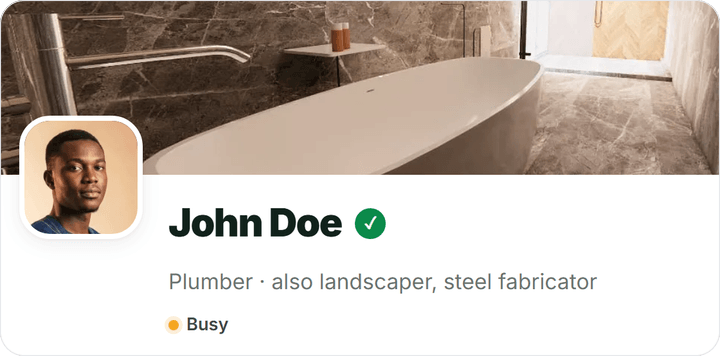
This is a person checking your documents by eye. FixAm does not look your card up in any government database. The green badge on your profile means our team did this check and was satisfied. What the badges mean explains it the way customers read it.
Who sees your documents? Only the FixAm admin team. Your card number, card photos and selfie are stored privately and are never shown on your profile, in search or to customers. The same goes for your references' phone numbers.
Photos that pass first time
The team can only approve what it can read. A few minutes of care now saves you a second round.
For the Ghana Card:
- Put the card flat on a dark table, in daylight or under a bright bulb.
- Hold the phone straight above the card, not at an angle.
- Fit the whole card in the photo, all four corners.
- Tilt the card if the plastic shines. A white patch over your name or number means the team cannot read it.
- Keep your fingers off the card's details.
- Use your real card, not a photocopy or a photo of a screen.
For the selfie:
- Face the camera, alone in the photo, with your whole face showing.
- Take off sunglasses and caps.
- Stand facing a window or a light. A bright light behind you turns your face dark.
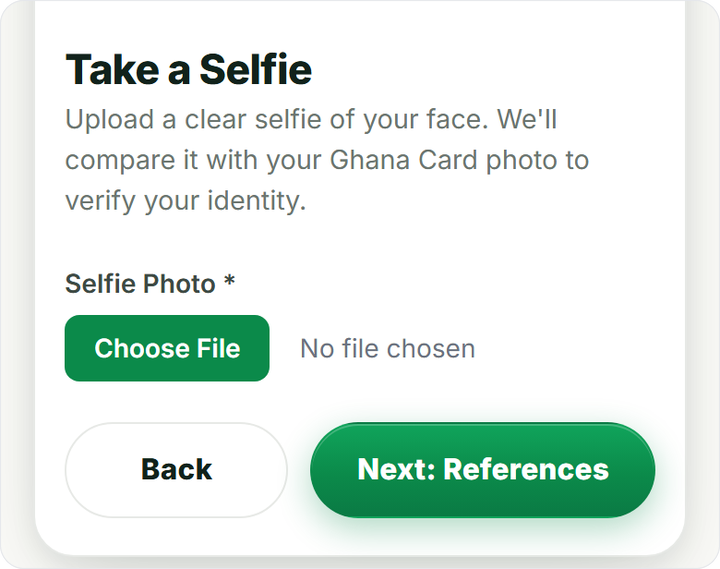
If the team cannot read a photo or match your selfie, your application is not approved. The SMS gives the reason when there is one. Pending, approved or rejected explains what to do next.
Updating your ID later (Update ID documents)
Got a new Ghana Card, or asked by the team for a clearer photo? Send new documents from the app:
- Sign in and open the Dashboard tab.
- Under Quick actions, tap Update ID documents.
- Add a new Ghana Card Photo, a new Selfie, or both.
- Tap Update Documents, then Confirm.
A pro whose application was rejected uses the same screen to apply again. Sign in with the phone number you joined with, send clearer photos, and the application goes back into the queue. Not joined yet? Start at Join as a Pro.
When the team approves you, the green tick shows next to your name on your public profile.